
Introduction
Working with MySQL gives you solid control over your data, but when it comes to reporting and visualization, running endless queries or exporting CSV files can get frustrating. That’s where a Zoho Analytics MySQL connection comes in.
By connecting MySQL directly to Zoho Analytics, you can build live dashboards, automate reports, and explore data visually—without touching SQL every time. In this guide, I’ll walk you through the setup process step by step.
Read More About: Why Zoho Analytics Tutorial in 2025?
Why Use Zoho Analytics with MySQL?
Linking MySQL to Zoho Analytics unlocks several advantages:
- Automatic data sync – no more manual exports.
- Interactive dashboards – transform raw tables into charts, pivots, and reports.
- Shared insights – collaborate with your team on a single platform.
- Smarter decisions – spot trends faster with visual analytics.
🎧 Listen to the audio summary or watch the short video version below for quick insights on Zoho Analytics MySQL connection.
What You Need Before Connecting
To set up a Zoho Analytics MySQL connection, have these details ready:
- Active Zoho Analytics account (Professional plan or higher).
- Your MySQL server details: hostname, port number, database name, username, and password.
- Database user with read-only access for secure integration.
- Internet access with permissions to allow Zoho Analytics to connect to your MySQL server.
Read More About: What is Business Analytics and why its for you?
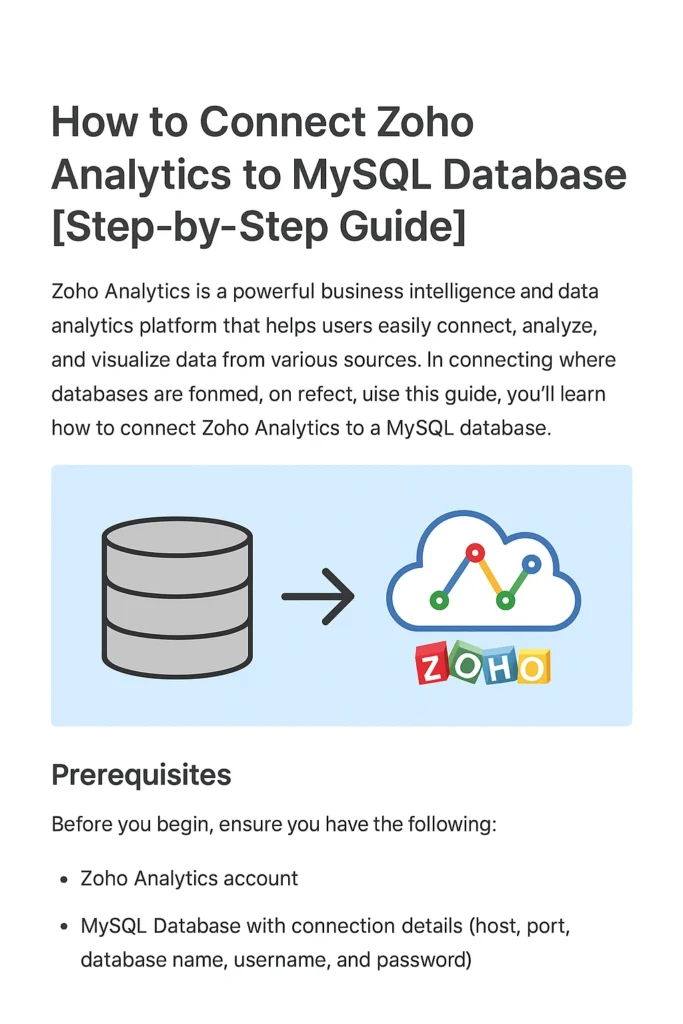
Step-by-Step: Creating a Zoho Analytics MySQL Connection
Step 1: Log In to Zoho Analytics
Open Zoho Analytics and navigate to the workspace where you want your MySQL data.
Step 2: Start the Data Import
Click Create → Import Your Data and choose MySQL Database as your source.
Step 3: Enter Database Details
Provide the hostname (server address), port (default 3306), database name, username, and password.
Step 4: Configure Data Sync
Choose how often Zoho Analytics should pull data—hourly, daily, or weekly. Go for hourly if your data updates frequently.
Step 5: Select Tables or Write Queries
Pick the tables you want or enter custom SQL queries if you need filtered data.
Step 6: Finalize the Connection
Review everything and hit Connect. Zoho Analytics will establish the link and fetch your MySQL data into your workspace.
Common Connection Issues and Fixes
- Connection refused → Ensure remote access is enabled and firewall rules allow Zoho Analytics.
- Wrong credentials → Double-check username and password.
- Slow sync → Optimize queries or set longer sync intervals.
Read More About: Build Interactive Dashboards in Zoho Analytics [With Sample Data]
Conclusion
Setting up a Zoho Analytics MySQL connection is straightforward and pays off quickly. Instead of spending hours exporting and re-uploading data, you’ll have a live link between MySQL and Zoho Analytics. That means real-time dashboards, faster reporting, and a clearer view of your business data.
If you rely on MySQL for data storage, this connection is one of the smartest steps you can take to make your analytics effortless.
Read More About: Business Intelligence (BI) and Why Its Essential for Your Business
FAQs on Zoho Analytics MySQL Connection
What is a Zoho Analytics MySQL connection?
Do I need a paid Zoho Analytics plan to connect with MySQL?
What information is required to set up the connection?
How do I allow Zoho Analytics to access my MySQL database?
Can I use incremental sync instead of full data import?
Is the connection between Zoho Analytics and MySQL secure?
Can I connect multiple MySQL databases to Zoho Analytics?
Why is my Zoho Analytics MySQL connection failing?
How often can I schedule data sync?
Can I run custom SQL queries instead of importing entire tables?









5 thoughts on “How to Set Up a Zoho Analytics MySQL Connection: Complete Guide”
Comments are closed.