Introduction – A Simple Email That Just Works
Emails are still the heart of every business. I am going to share with you all, on my over all experience on zoho mail setup. Whether you’re a freelancer, student, or small business owner, you need a professional email that looks clean and trustworthy.
If you’ve tried Gmail or Outlook before, you know they often show ads or mix personal and work emails together. Zoho Mail is different. It’s ad-free, fast, private, and free to use for up to 5 users — perfect for anyone who wants a business-style inbox without spending money.
In this easy guide, I’ll show you how to set up Zoho Mail in 2025 step by step. You don’t need to be a tech expert — just follow along.
What Is Zoho Mail and Why People Love It
Let’s start with Zoho Mail free business email and why so many people prefer it. Zoho Mail is part of the larger Zoho ecosystem — the same company behind Zoho CRM, Books, and Projects. It’s built for users who value simplicity, privacy, and a clutter-free email experience.
Here’s why thousands of professionals are switching to Zoho Mail:
- It’s completely ad-free, even on the free plan.
- You can use your own domain (like info@yourdomain.com).
- Each user gets 5 GB of storage on the free plan.
- It has built-in tools like Calendar, Tasks, and Notes.
- Strong privacy protection with end-to-end encryption.
So basically, you get everything you need — email, organization, and security — in one place, for free.
Step-by-Step Zoho Mail Setup Personal Email Guide (2025)
Setting up Zoho Mail only takes a few minutes. Follow these simple steps below.
Step 1: Go to the Zoho Mail Signup Page
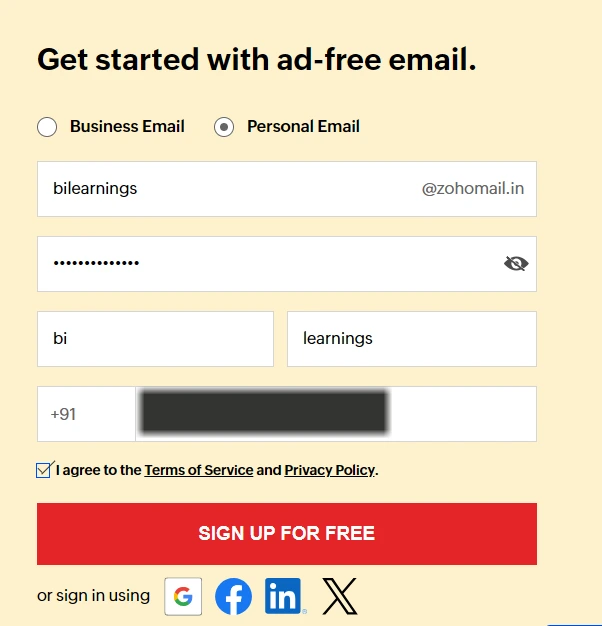
I have selected the personal email to demonstrate you.
- Enter the email id you want. once you enter the specific id automatically @zohomail.in will assign. No need to add it.
- Enter the Password which you have good memory
- Enter the First name and Last Name.
- Very important is you have to enter the correct mobile no. which is not already register with other zoho accounts.
- Once these information filled out you can click on I Agree to the terms and conditions
- Finally click on signup for free
Pro Tip: You can directly create zoho mail account using Gmail, Facebook, LinkedIn and X-Twitter with OTP verification. These are standard signup method for all zoho products. So you can try it once.
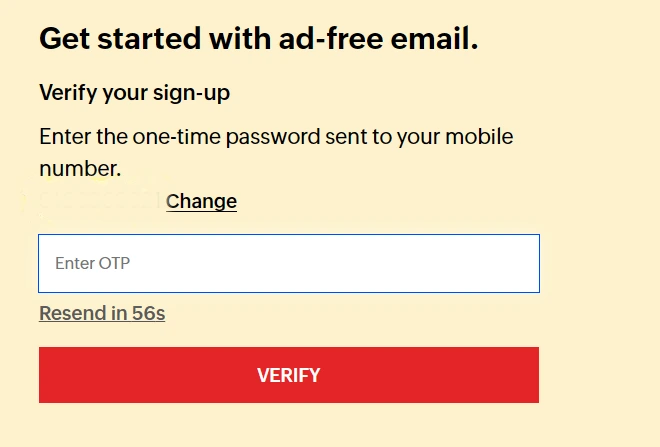
Step 2: Signup OTP Verification
To complete the zoho email setup this is the final step.
During this process, a 7-digit OTP will be sent to the mobile number you entered. If you don’t enter the OTP within 15 minutes, it will expire. In that case, you’ll need to request a new OTP and repeat the same verification process.
This OTP process is essential to verify whether the entered mobile number is valid or not.
Step 3: Zoho Mail Setup Final Step
Once you complete the signup process, Zoho will guide you through a few internal setup steps. Let’s take a look at what they are and how to configure them properly.
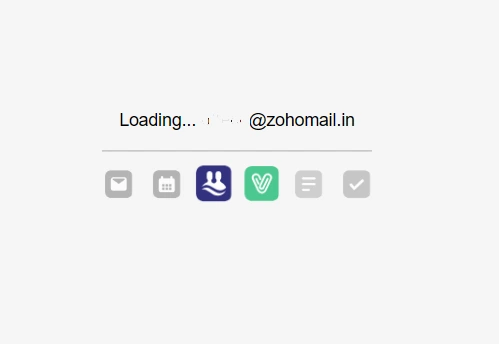
3.1 Zoho Mail Setup Initial Loading
When you see this screen, it means your Zoho Mail account is successfully created and ready for the next setup steps.
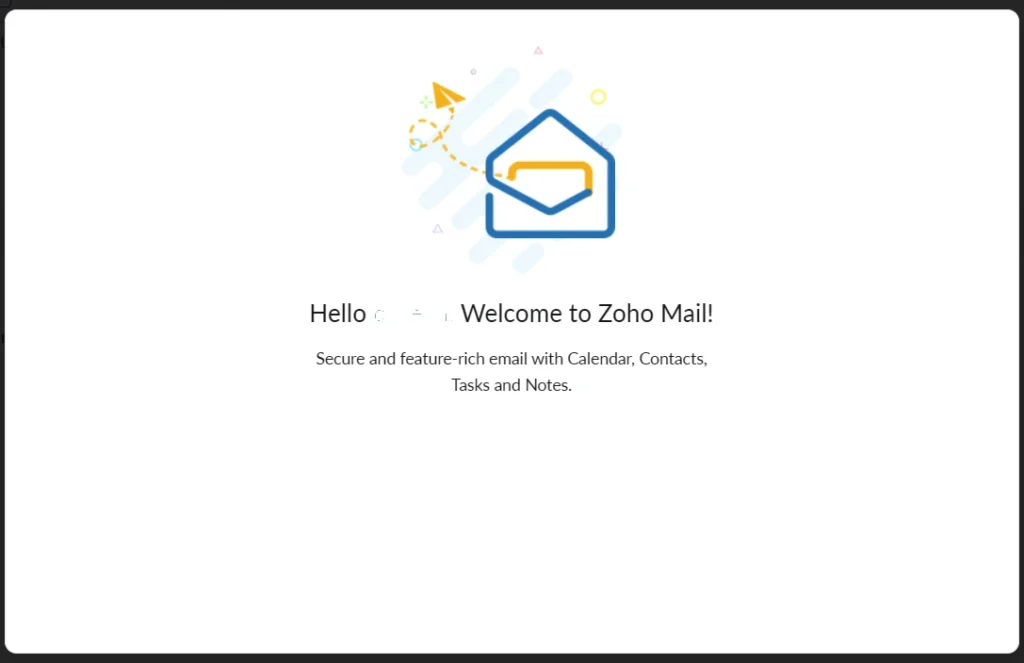
3.2 Zoho email setup Welcome Screen
After the loading finishes, you’ll see the “Welcome to Zoho Mail” screen. This means your Zoho Mail account has been successfully created and is ready to use.
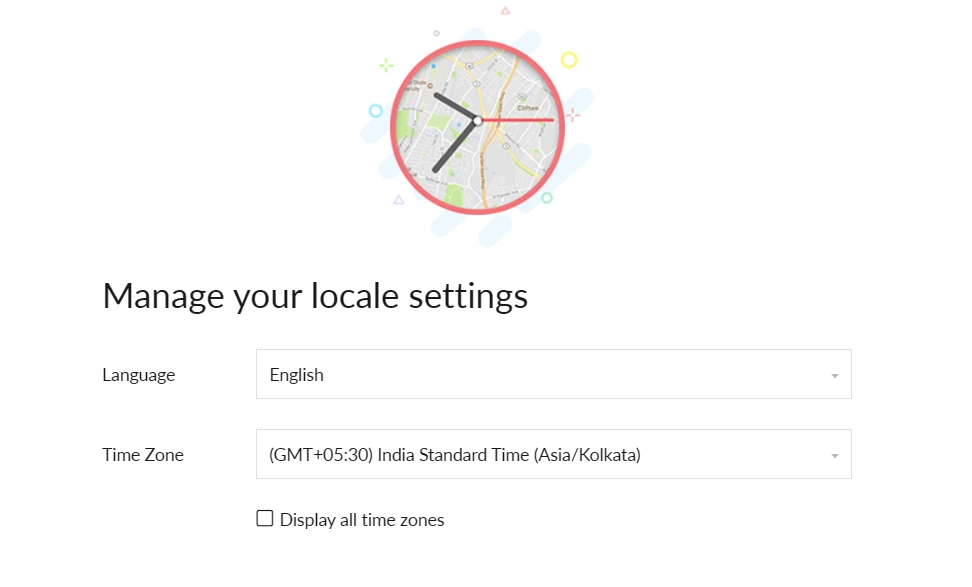
3.3 Zoho Mail Manage Your Local Settings
Setting your local time zone and preferred language in Zoho Mail helps you personalize your email experience and keep everything in sync with your schedule.
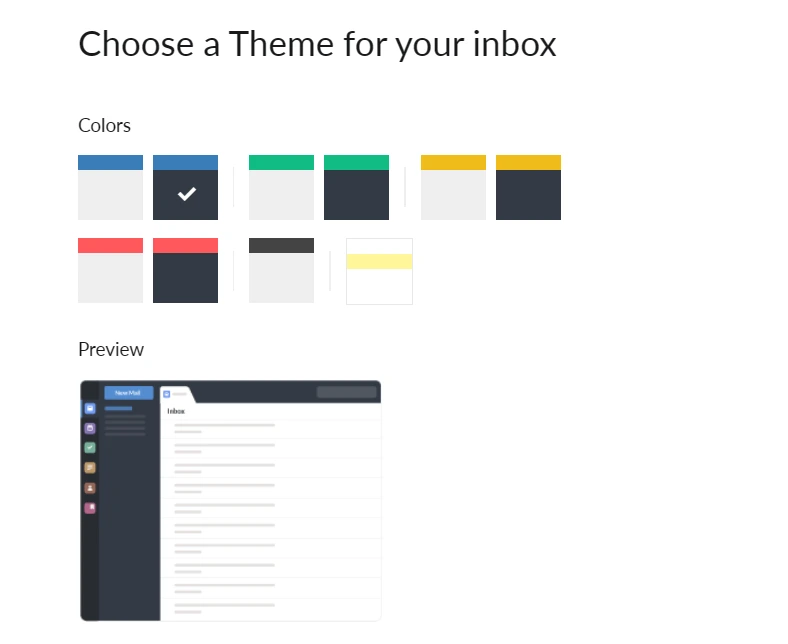
3.4 Zoho Mail Inbox Theme Setup
Choose the inbox and framework color designs according your requirements
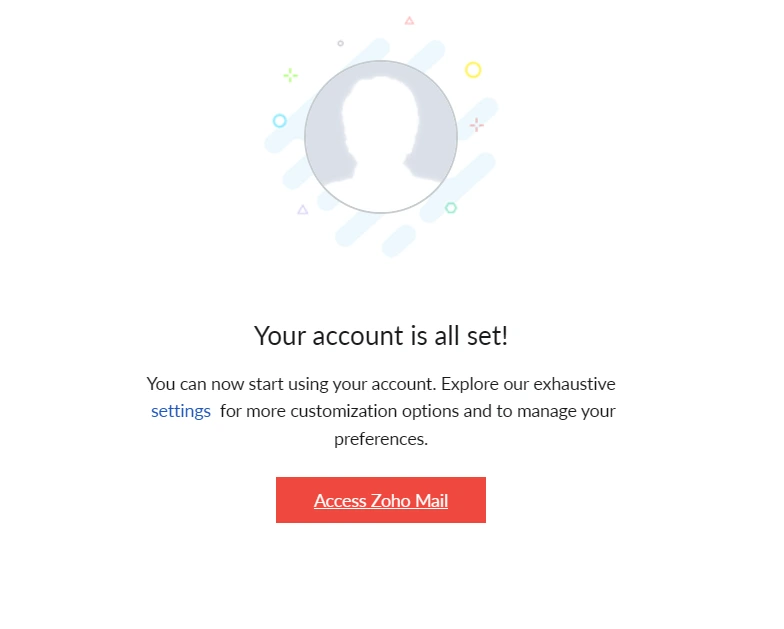
3.5 Zoho Mail Setup Completion with All Set
This is the final screen confirming that your Zoho Mail account has been successfully created.
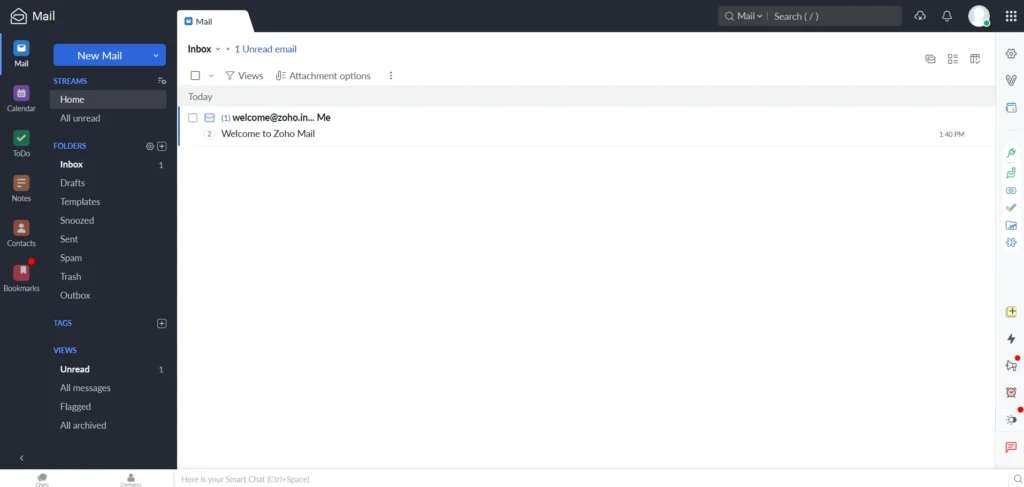
3.6 Exploring Your Zoho Mail Inbox: A Complete Beginner’s View
The first screen you see after setup is your Zoho Mail inbox. It gives you access to all your messages, contacts, and essential tools in one view. Whether you’re handling personal emails or business communication, everything feels organized and easy to use.
How to Use Zoho Mail on Your Mobile
You can easily use Zoho Mail on your phone too.
- Download Zoho Mail App from Play Store or App Store.
- Open it and log in using your Zoho credentials.
- Turn on notifications to get email alerts.
- Enable 2-Step Verification for better security.
💡 Tip: If you use Outlook or Thunderbird, you can also connect Zoho Mail using IMAP or POP settings.
Final Thoughts
Setting up Zoho Mail is easy, even if you’re not tech-savvy.
You can get your business email running in less than 15 minutes — for free.
Here’s what you get:
✅ A clean, ad-free inbox
✅ Free domain-based email
✅ Secure communication
✅ Simple interface anyone can use
So if you’re tired of cluttered inboxes or expensive email tools, Zoho Mail is the perfect choice for your business in 2025.
Learn More on Interesting Posts
‘👉 Swadeshi SAAS – The Ultimate 50+ Zoho Products Guide to Grow Your Business
FAQ on How to Set Up Zoho Mail for Free in 2025
Is Zoho Mail really free to use?
Can I use Zoho Mail without a domain name?
yourname@zohomail.com for personal or small business use.How long does it take to set up Zoho Mail?
Does Zoho Mail setup support IMAP and POP?
Can I migrate my Gmail emails to Zoho Mail?






1 thought on “How to Set Up Zoho Mail for Free in 2025 (Step-by-Step Guide for Beginners)”
Comments are closed.